Documentation
Archify for WordPress
A block theme for architecture and interior design studios, with its companion plugin Archify Core. Live preview: themes.mbithemes.com/archify-wordpress/
- Version
- 1.0.0
- Released
- 5 November 2026
- Theme type
- Block theme (Full Site Editing)
- Plugin
- Archify Core 1.0.0
- WordPress
- 7.1 or newer
- PHP
- 7.4 or newer
Introduction
Archify is a block theme for architecture and interior design studios: paper, ink and one acid lime, a printed 12-column grid with its ruler, crop-marked photo plates, mono labels and quiet entrance motion. Every page is made of core WordPress blocks, so you edit it in the block editor and the Site Editor like any block theme.
- Six home pages, three about pages, four services layouts and five service details, projects with case studies, a journal, process, fees, a four-step quote form, careers, press and three contact pages.
- 112 patterns: every page as a full-page pattern, and some sixty sections (heroes, work grids, numbers, steps, questions, quotes, prices, plans, teams, contact) in the inserter.
- Five headers and five footers, chosen for the whole site in Theme Options or page by page, and a full-screen phone menu.
- Light and dark schemes with a switch for visitors, three font pairings, and five style variations.
- Theme Options: a dashboard for branding, colours, typography, layout, header, footer, blog, single posts, pages, archives, social links, integrations, custom CSS, import and export, the demo import, translation and the system status.
- Archify Core, the companion plugin: projects, the page design panel, social profiles and sharing, analytics and code, and the one-click demo.
New to block themes? The Site Editor (Appearance › Editor) is where you edit the header, the footer, the menu and the templates. Pages and posts are edited in the block editor as usual.
Requirements
| Needed | Recommended | |
|---|---|---|
| WordPress | 7.1 or newer (it uses the Tabs block) | The latest version (tested with 7.1) |
| PHP | 7.4 or newer | 8.2 or newer (tested with 8.5) |
| Memory limit | 128 MB | 256 MB for the demo import |
| Maximum execution time | 60 seconds | 300 seconds for the demo import |
| Upload size | 8 MB | 64 MB |
Archify › Theme Options › System status compares your server with this list.
What's in the download
| File or folder | What it is |
|---|---|
Installable-Theme/archify.zip | The theme. Upload this one to WordPress. |
Installable-Theme/archify-child.zip | An empty child theme for your own PHP and CSS (optional). |
Plugins/archify-core.zip | The companion plugin. The theme offers to install it for you; the file is here too. |
Documentation/ | This guide, as a web page (index.html) and as a PDF. |
Demo-Content/ | The demo content (content.xml), its menu and settings, for a manual import. |
Licensing/ | The GPL licence and the credits for the fonts and code Archify uses. |
README.txt | A short start guide. |
Installing Archify
- In your WordPress admin, go to Appearance › Themes › Add New Theme › Upload Theme.
- Choose
archify.zipfromInstallable-Themeand click Install Now, then Activate. - Archify adds an Archify menu with a dashboard of four steps: install the plugins, import the demo, add your logo and colours, edit the pages.
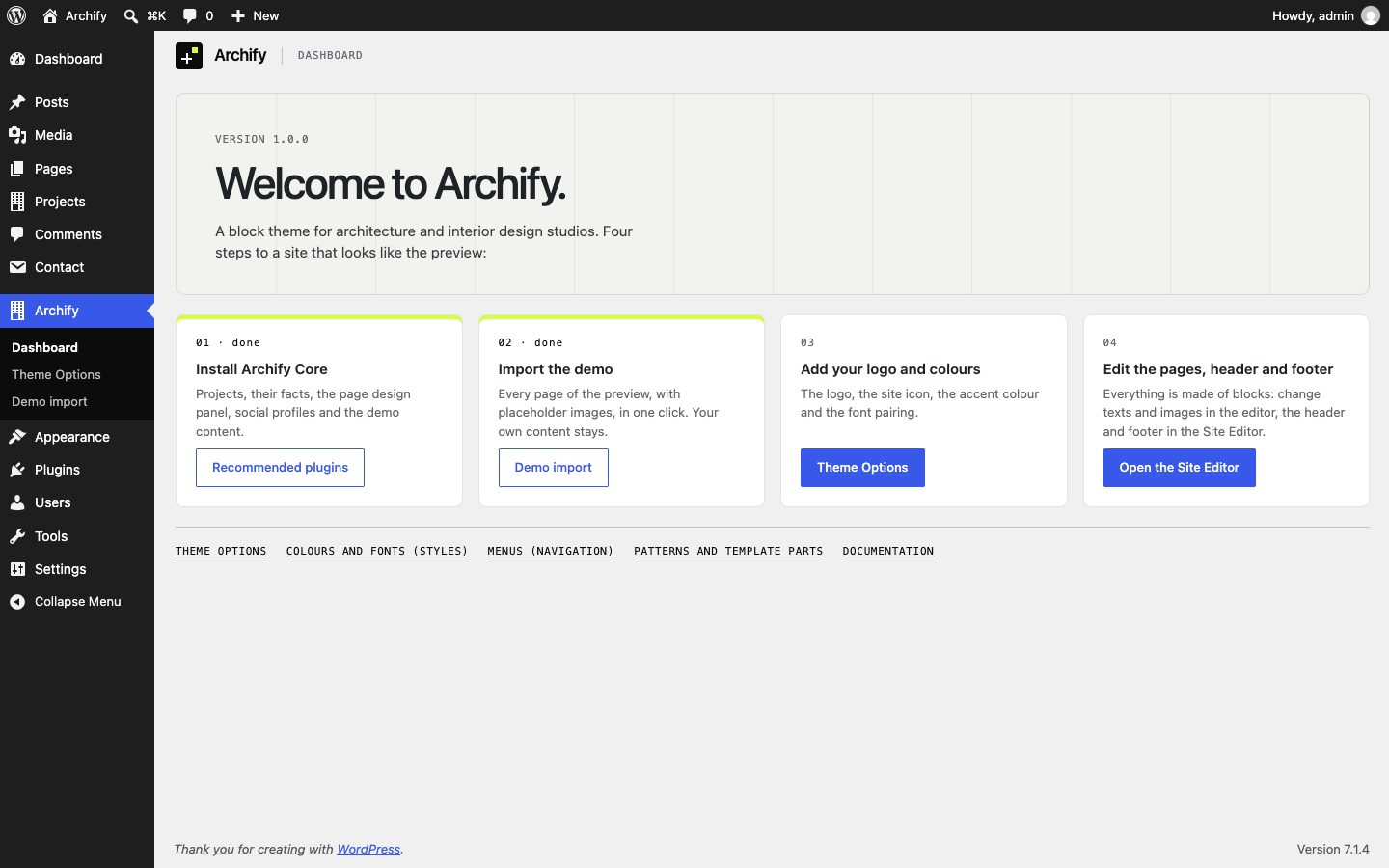
Upload archify.zip, not the whole download. The full download contains the documentation and other files WordPress cannot install.
The plugins
After activating, a notice offers to install three plugins. Click Begin installing plugins, or go to Archify › Install Plugins.
| Plugin | Needed for |
|---|---|
| Archify Core (required) | Projects and project types, the Page design panel, social profiles and share links, analytics and code, and the demo import. |
| One Click Demo Import (optional) | Runs the demo import. You can remove it afterwards. |
| Contact Form 7 (optional) | The contact, quote, booking and newsletter forms of the demo. |
Without the plugins, the theme still works: posts, pages, the journal, archives, search, the menus, every pattern and Theme Options. Pages that hold a form leave it out while Contact Form 7 is off.
Importing the demo
The demo makes your site look like the preview: 30 pages, 9 projects, 6 journal posts, the images, the main menu, five forms and the settings.
- Install and activate Archify Core and One Click Demo Import (and Contact Form 7 for the forms).
- Go to Archify › Demo import.
- Pick Archify: the complete demo (content, menu, forms, the front page and the blog page, Theme Options and permalinks) or Archify: content only (pages, projects, posts and images, without changing your settings).
- Click Import and wait for the confirmation. It takes under a minute on most hosts.
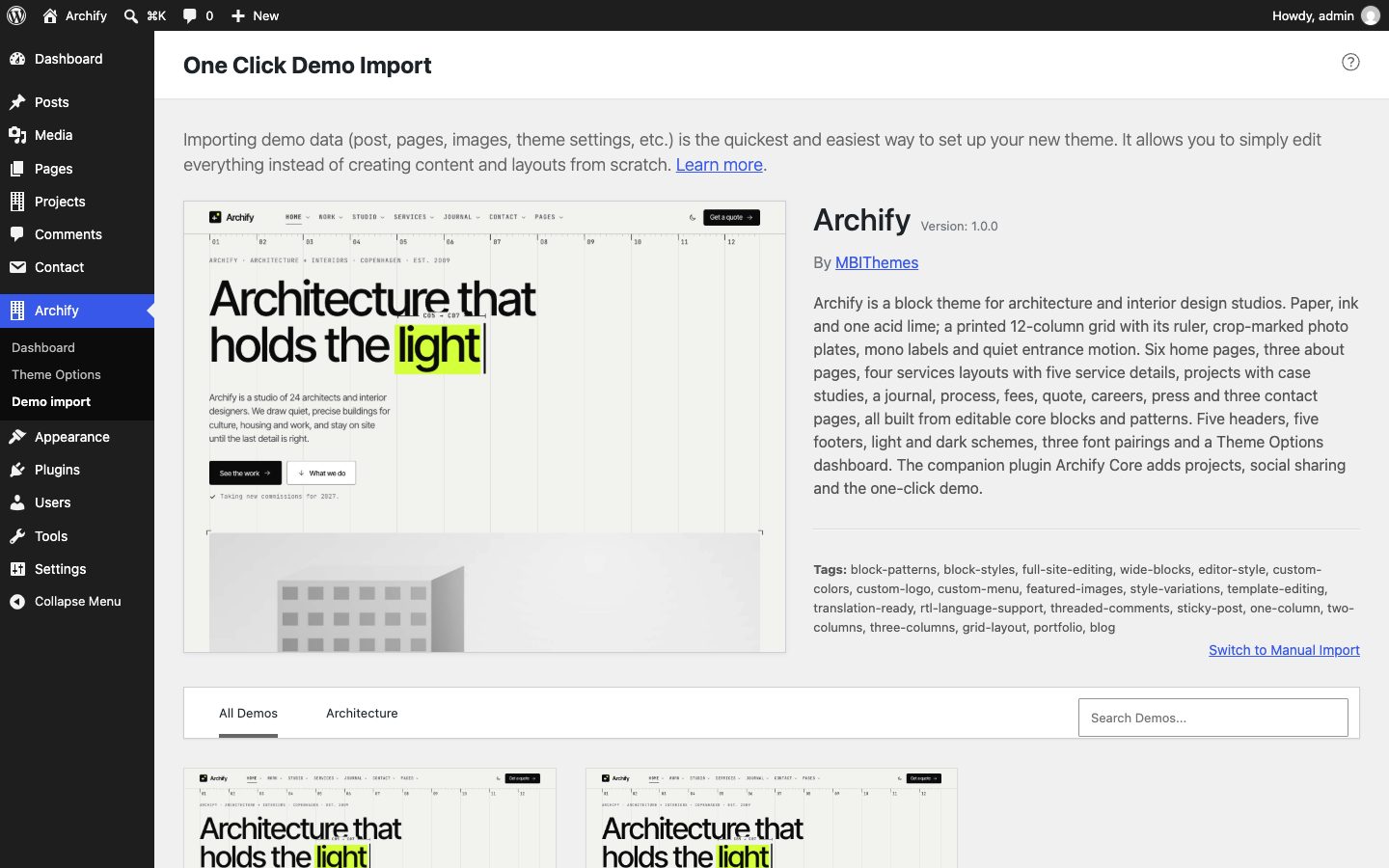
- The images are placeholders and technical drawings made for Archify. The photographs in the live preview are licensed for the preview only and are not included; replace the placeholders with your own photos.
- The import never changes or deletes your own content. Importing twice creates the pages twice, so import once.
- To take the demo away again, use Remove the demo content in Archify › Theme Options › Demo import: it moves every page, post, project, form and menu the demo added to the Trash. The images stay in the Media Library.
If the import stops on a slow host, ask the host to raise the PHP time limit to 300 seconds, or import Demo-Content/content.xml with Tools › Import › WordPress.
The child theme
Use the child theme when you want to add PHP or CSS of your own: your changes then survive theme updates. Install archify-child.zip like the theme and activate it; Archify stays installed as the parent. Theme Options, menus and the Site Editor work the same.
For small style changes you don't need it: use Archify › Theme Options › Custom CSS.
Theme Options
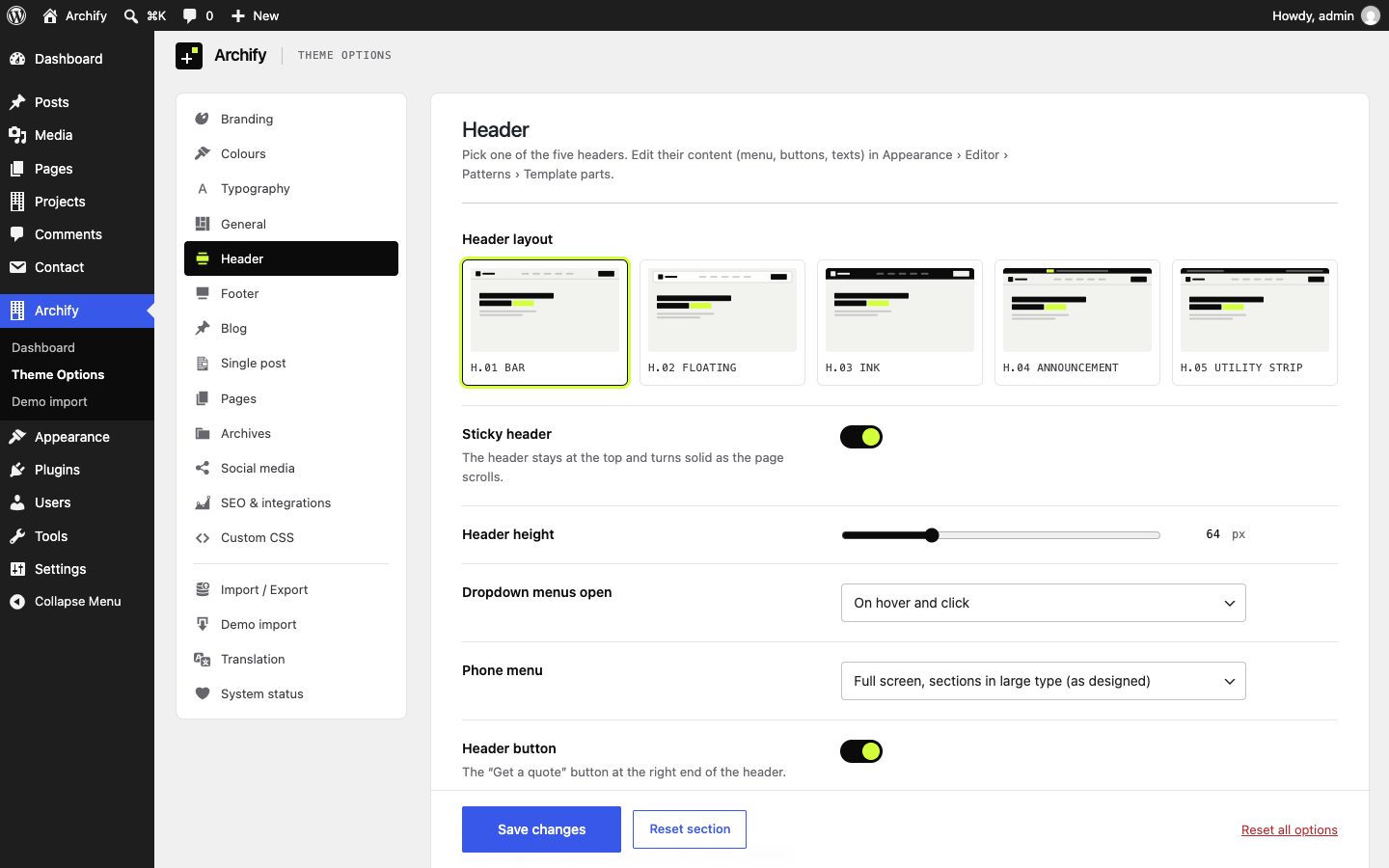
Archify › Theme Options holds the site-wide choices that don't belong to one page. Each section saves on its own button, has a Reset section button, and Reset all options returns everything to the defaults after a confirmation.
| Section | What you set there |
|---|---|
| Branding | Logo, a logo for dark backgrounds, logo width, the Archify mark, the site title next to the logo, the site icon, a default featured image. |
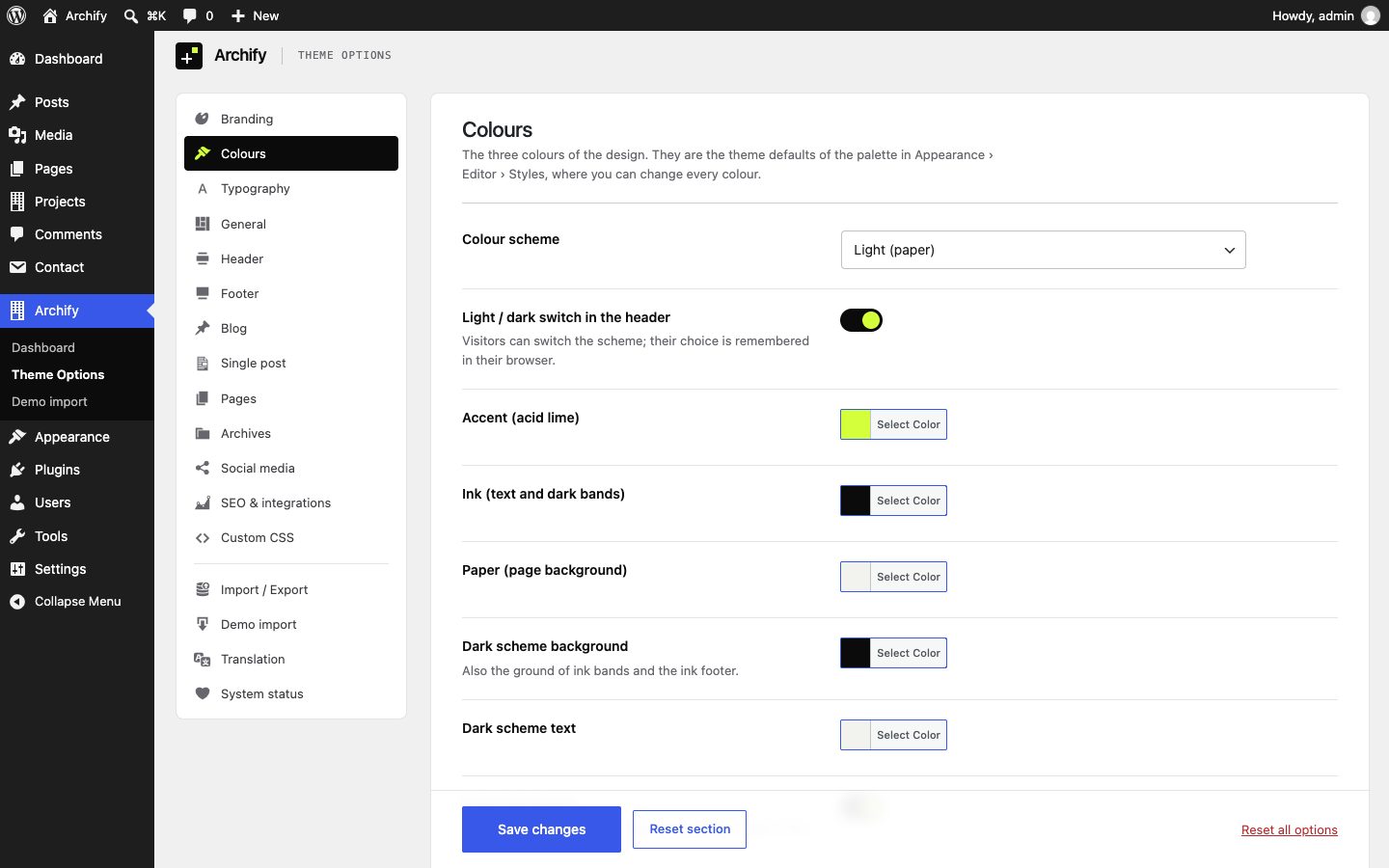
| Colours | The scheme (light, dark or the visitor's system setting), the light and dark switch, the accent, ink and paper colours, the dark scheme colours, greyscale photos. |
| Typography | Font pairing (Precise, Quirk, Poster), body text size, headline weight and letter spacing, mono labels in capitals or as typed. |
| General | Page width, corners, the printed column guides and ruler, entrance motion, smooth scrolling, the back to top button. |
| Header | Header layout, sticky header, header height, how dropdowns open, the phone menu, the header button and its label and link. |
| Footer | Footer layout, the copyright line ({year} and {site} are filled in), the pause-motion button. |
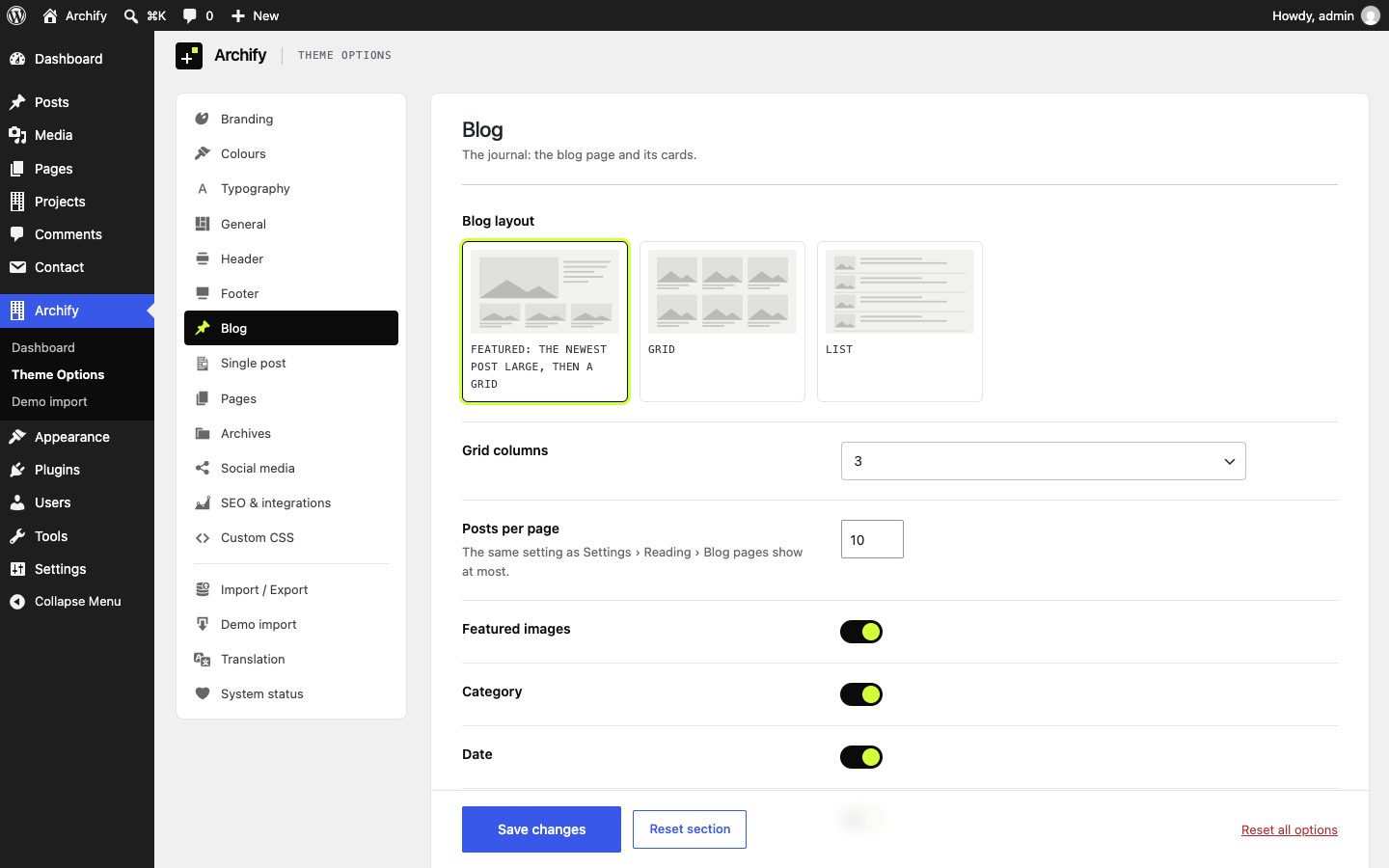
| Blog | Journal layout (featured, grid, list), columns, posts per page, what each card shows, excerpt length, read more label, pagination. |
| Single post | Layout with or without a sidebar, featured image, meta, author box, tags, previous and next, more from the journal. |
| Pages | Default page layout, title, breadcrumbs, featured image. |
| Archives | Category, tag, author and date archives, search results, term descriptions, the projects archive layout. |
| Social media | Your profiles (they fill the social icons everywhere) and the share links under posts. With Archify Core. |
| SEO & integrations | Google Analytics measurement ID, code in the head and before </body>. With Archify Core. |
| Custom CSS | Your CSS, the same as WordPress's Additional CSS. |
| Import / Export | Save the options as a file and load them on another site. |
| Demo import | What the demo needs, the import, and removing the demo. |
| Translation | Where the translation files are and how to translate Archify. |
| System status | Your server and WordPress next to what Archify needs, to copy into a support request. |
Import and export
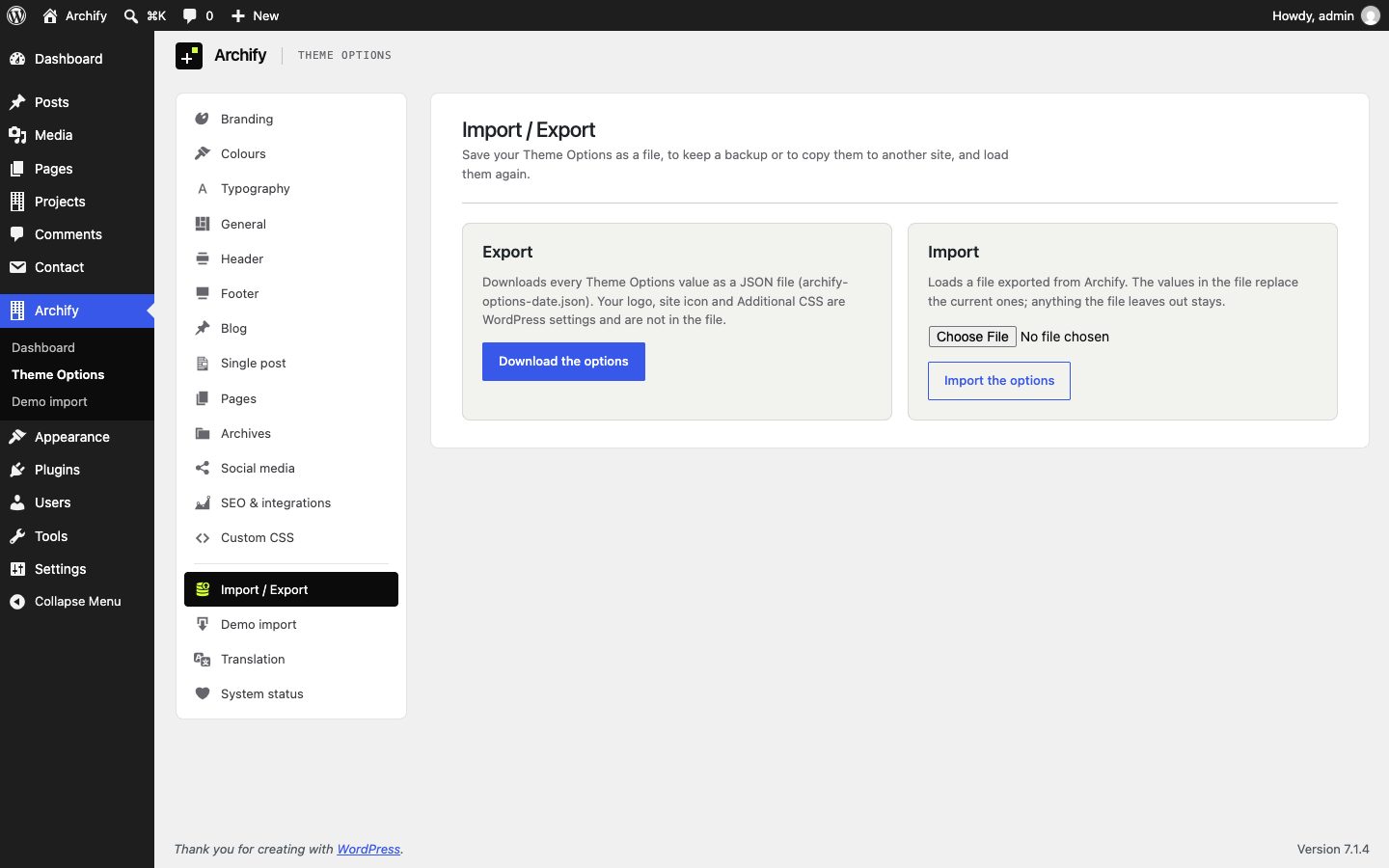
Theme Options › Import / Export downloads every option as a JSON file. Load it on another site with Import: values are checked one by one, and numbers outside their range are brought back into it.
Global Styles and style variations
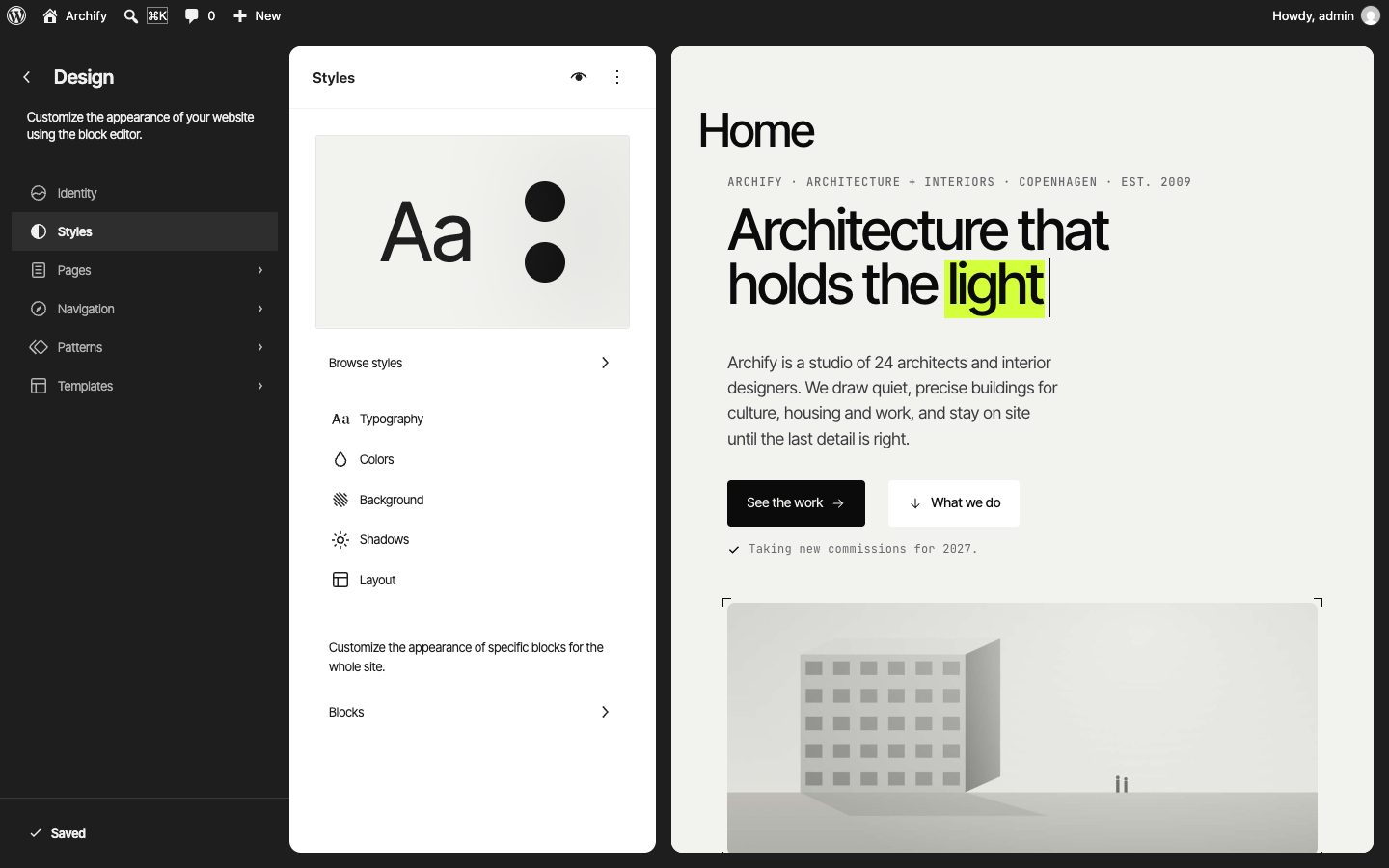
Colours, fonts, sizes and spacing come from theme.json, so Appearance › Editor › Styles changes them for the whole site, for one block type, or for one element. Theme Options sets the starting values; what you change in Styles wins over them.
Five style variations change the look in one click: Quirk and Poster (the other two font pairings), Sun, Mint and Sky (other accent colours).
Headers and footers
| Header | Footer | ||
|---|---|---|---|
| H.01 Bar | A full-width bar on a hairline, solid as the page scrolls. | F.01 Wordmark | Link columns and the studio name set huge across the bottom. |
| H.02 Floating | The bar as an inset card floating over the page. | F.02 Columns | Four link columns, one of them every service. |
| H.03 Ink | A dark bar on light pages. | F.03 Newsletter | A sign-up form above the columns. |
| H.04 Announcement | An ink strip with a news line above the bar. | F.04 Contact | The email address set large, with the studio's details. |
| H.05 Utility strip | A slim strip with status, phone and email above the bar. | F.05 Minimal | One line: copyright and links. |
- For the whole site: Theme Options › Header and Theme Options › Footer.
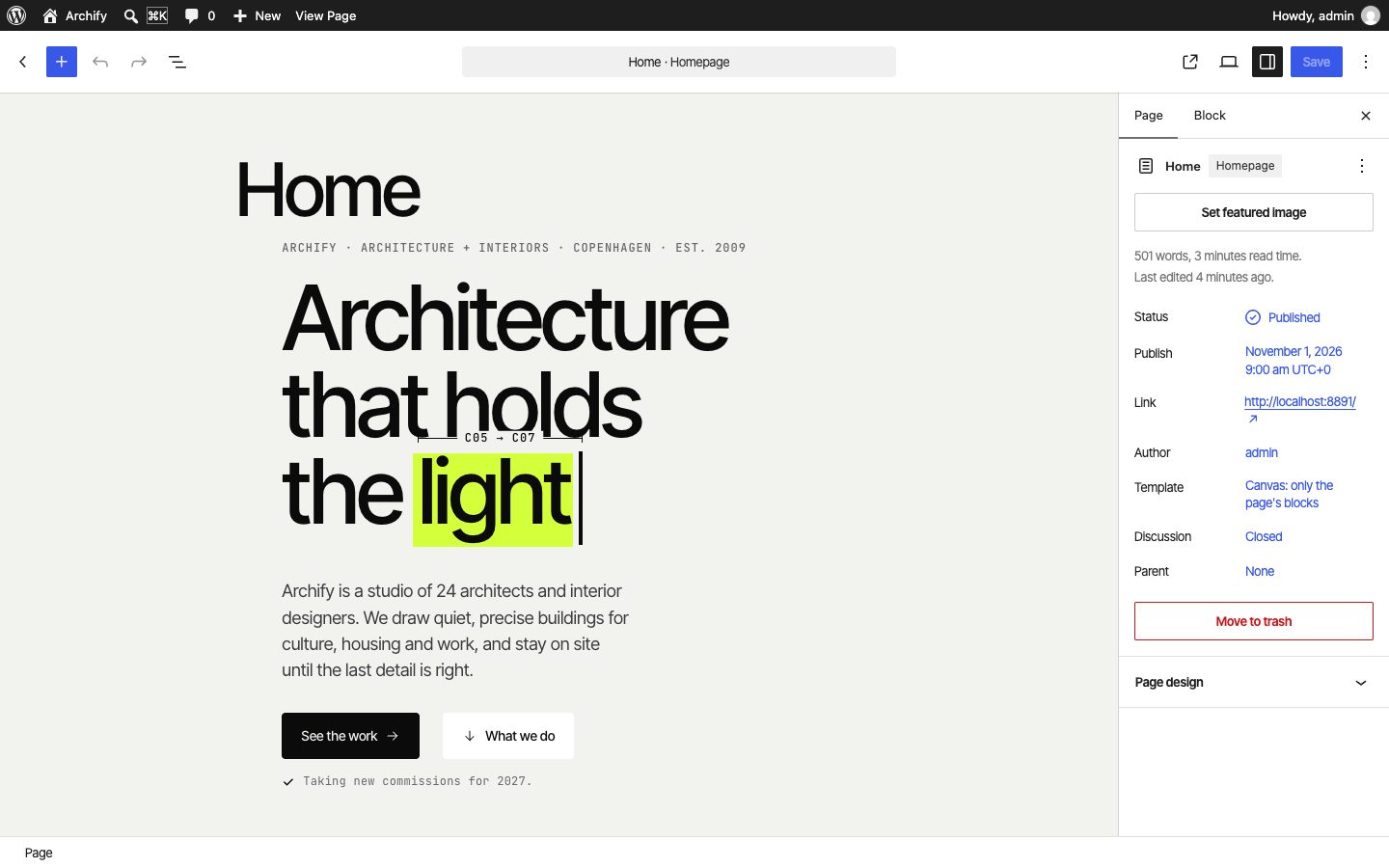
- For one page: the Page design panel in the page's settings sidebar (with Archify Core), which also picks the word highlighted in lime in the page heading.
- To change what's in them (links, texts, buttons): Appearance › Editor › Patterns › Template parts.
Templates and template parts
| Template | Used for |
|---|---|
| Blog Home | The journal (the page set as the posts page). |
| Pages | Pages: the title band, then the page's blocks in a text column (Theme Options › Pages sets the default). |
| Canvas: only the page's blocks | Pages built from patterns, like every demo page: the header, your blocks, the footer. |
| Page: full width | Pages whose blocks use the full page width. |
| Page: with sidebar | A page with the sidebar beside it. |
| Single Posts | Journal posts. |
| Single item: Project, Project archive, Project types | Projects (with Archify Core). |
| All Archives, Search Results, Page: 404 | Categories, tags, authors and dates; search; missing pages. |
| Index | The fallback. |
Pick a page's template in the page's sidebar (Page › Template). Edit templates in Appearance › Editor › Templates; Reset in the template's menu returns it to Archify's version.
Template parts: five headers, five footers, the Menu (the phone menu) and the Sidebar.
Patterns
Open the inserter (the + at the top left of the editor) and choose Patterns. Archify's patterns are grouped under these categories:
- Archify: Full pages: every demo page, ready to start a new page from.
- Archify: Page openers: heroes and title bands.
- Archify: Work, Studio, Services, Journal, Contact: the sections of those pages.
- Archify: Features and numbers: features, numbers, steps, questions, quotes, prices, plans, logos.
- Archify: Calls to action: the lime closing bands and newsletter bands.
- Archify: Headers and footers: the content of the template parts.
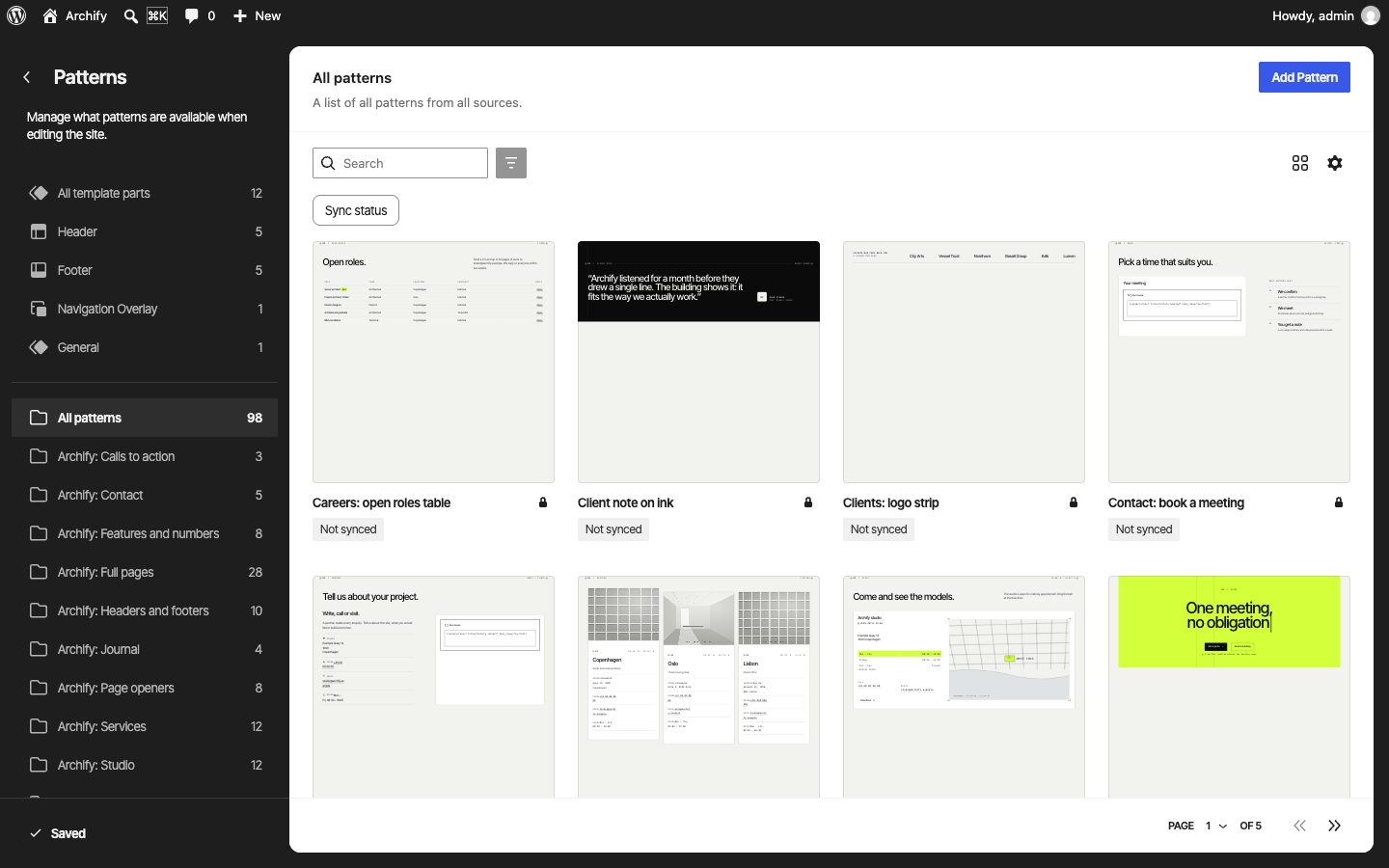
A new page from a full-page pattern: add a page, set its template to Canvas: only the page's blocks, then insert the pattern. Everything in it is ordinary blocks: change the texts, swap the images, remove what you don't need.
Block styles and the highlight
Select a block and open Styles in its settings to use Archify's variations:
| Block | Styles |
|---|---|
| Group | Ink band, Lime band, Stone band, Tile, Crop-marked plate |
| Button | Secondary, Ghost, Lime, Text link |
| Image | Crop-marked plate, Rounded frame |
| Paragraph | Mono label, Lead, Mono data |
| Heading | Mono label |
| List | Ruled, Arrows, Ticks |
| Separator | Section rule |
| Quote | Statement |
| Table | Data sheet |
| Details | Question |
The lime word in headings: select the word and choose Highlight in the toolbar's more options (the arrow beside the formatting buttons).
Projects
Projects (with Archify Core) have their own menu. Each project has a title, a summary (the excerpt), a featured image, project types, and the Project facts panel: client, location, year, area and status, shown on the project cards and the project page.
- The archive is at
/projects/, with three layouts in Theme Options › Archives › Projects archive. - A new project starts with the case study pattern: hero, facts, the brief, images, numbers and a quote. Change or remove any part.
- Project types (Projects › Project types) group the projects and have their own archive.
- The order on the archive follows the Order field (Page Attributes), then the date.
The journal
The journal is your blog. The complete demo sets Settings › Reading: the Home page as the front page and Journal as the posts page.
- Give each post a featured image and an excerpt: the cards and the post's heading use them.
- Highlighted word in the Page design panel marks one word of the title in lime on the post's page, as in the demo.
- The layout of the journal, the archives and the single post are in Theme Options › Blog, Archives and Single post.
Forms
The complete demo creates five Contact Form 7 forms (Contact › Contact Forms): Archify contact, Archify message, Archify quote, Archify booking and Archify newsletter. The pages show them with a Shortcode block:
[contact-form-7 title="Archify quote" html_class="ax-form"]Change the recipient and the messages in each form's Mail tab. The forms use a few classes for their layout, so a form you write yourself can look the same:
| Class | Does |
|---|---|
ax-form | On the shortcode: the form's own styles. |
ax-fields is-2 | Fields side by side (two columns). |
ax-field, is-wide | One field with its label; full width. |
ax-cards-choice | Radio buttons as cards. |
ax-chips | Checkboxes or radio buttons as mono tags. |
ax-slider | A range slider with its value and marks. |
WordPress sends mail through your server, which many hosts block. If messages don't arrive, install an SMTP plugin.
Analytics, SEO and your own code
- Google Analytics: paste the measurement ID (
G-…) in Theme Options › SEO & integrations. - Code in the head and before </body>: for verification tags or other scripts. Only administrators who may post unfiltered HTML can change these fields.
- SEO plugins: Archify adds no SEO tags of its own, so Yoast SEO and Rank Math work as usual. Breadcrumbs use WordPress's Breadcrumbs block.
Light, dark and motion
Visitors switch between light and dark with the moon and sun button in the header; their choice is remembered in their browser. Theme Options › Colours sets the scheme a first visit starts with, or follows the visitor's system setting.
Sections fade and rise into view once, the lime highlight wipes in, and numbers count up. Visitors who ask their system for less motion get none, and the footer's pause button stops it for everyone who presses it. Theme Options › General › Entrance motion turns it off for the whole site.
Translation and RTL
Every text is translatable. The theme's strings are in archify/languages/archify.pot (text domain archify), the plugin's in archify-core/languages/archify-core.pot (archify-core).
- Install Loco Translate, or translate the .pot file with Poedit.
- Save the translation as
archify-de_DE.poand.mo(with your language's code) inwp-content/languages/themes/, so updates keep it. - Texts that are part of the demo content (page texts, menu labels) are content: translate them in the editor.
The stylesheet uses logical properties, so right-to-left languages lay out mirrored.
Performance
- The theme makes no requests to other servers: the fonts are bundled (WOFF2), and only the two used first are preloaded.
- One stylesheet and two small scripts; WordPress loads each block's own styles only on the pages that use the block.
- The demo images are added to the Media Library with all their sizes, so pages load the size they need.
- Motion uses CSS only, and stops for visitors who prefer less motion.
Accessibility
- A skip link to the content, visible focus outlines, and landmarks for the header, menu, main content and footer.
- Menus, dropdowns, tabs and questions work with the keyboard; the phone menu traps focus while it is open.
- Text colours meet WCAG AA contrast on paper and on ink (the quietest grey is 5:1 in the light scheme, 6.6:1 in the dark).
- Every form field has a label; required fields are marked in text, not only by colour.
- Reduced motion is respected, and motion can be paused.
Custom CSS
The stylesheet, assets/css/archify.css, is readable and divided into numbered parts listed at its top. To change a style, copy the rule into Theme Options › Custom CSS (or the child theme's style.css) and change it there, so updates keep it.
.wp-block-button__link {
  border-radius: 999px;
}
Colours, fonts and sizes are better changed in Theme Options or Appearance › Editor › Styles: they reach every block and the editor too.
Updating
- Download the new version from your ThemeForest downloads.
- Upload
archify.zipin Appearance › Themes › Add New Theme › Upload Theme and choose Replace current with uploaded. - Update Archify Core when WordPress offers it, or upload the new
archify-core.zipthe same way in Plugins › Add New Plugin.
Your pages, Theme Options, menus and Site Editor changes are kept in the database and stay. Changes made in the theme's files are lost: keep those in the child theme.
Troubleshooting
The site doesn't look like the preview
Import the demo (Archify › Demo import). Without it, a new site shows WordPress's sample page and an empty menu.
A page shows the header twice, or no title band
Demo pages use the Canvas template, which leaves the page to its blocks. Check the page's template in its sidebar.
Changes in Theme Options don't show
Appearance › Editor › Styles wins over Theme Options for colours and fonts; reset the change there. A caching plugin may also serve an old page: clear its cache.
The menu has no dropdowns
Drag links onto another link in Appearance › Editor › Navigation to nest them.
Forms don't send
Check the recipient in the form's Mail tab, then install an SMTP plugin: many hosts block PHP mail.
Sources and credits
Archify is built on Swiss Tech Mono, the design system by MBIThemes. Everything else it uses is listed here with its licence (also in Licensing/CREDITS.txt).
| Resource | Licence | Used for |
|---|---|---|
| Inter Tight, JetBrains Mono, Space Grotesk, Space Mono, Archivo, Fragment Mono | SIL Open Font License 1.1 | The three font pairings, bundled in assets/fonts |
| TGM Plugin Activation 2.6.1 | GPL-2.0-or-later | Offering the plugins after activation |
| Tailwind CSS preflight | MIT | The reset at the start of archify.css |
| Demo images, drawings and icons | GPL-2.0-or-later, by MBIThemes | Placeholders in assets/images/demo |
| Unsplash photographs | Unsplash License | The live preview only, not in the download |
Changelog
Version 1.0.0 · 5 November 2026
- First release.
Support
Questions, a bug, or something unclear in this guide? Write to us through mbithemes.com/support with your purchase code and, if you can, a link and the text from Theme Options › System status. We reply within two working days.
Support covers the theme's and the plugin's features and fixes for bugs. It does not cover customisation work or third-party plugins.
Social links and sharing
Enter your profiles in Theme Options › Social media: every Social Icons block on the site uses them, so you change an address in one place. Icons without an address stay hidden. The same section turns the share links under journal posts on or off; the Share links block can be added anywhere.